
December 3, 2022
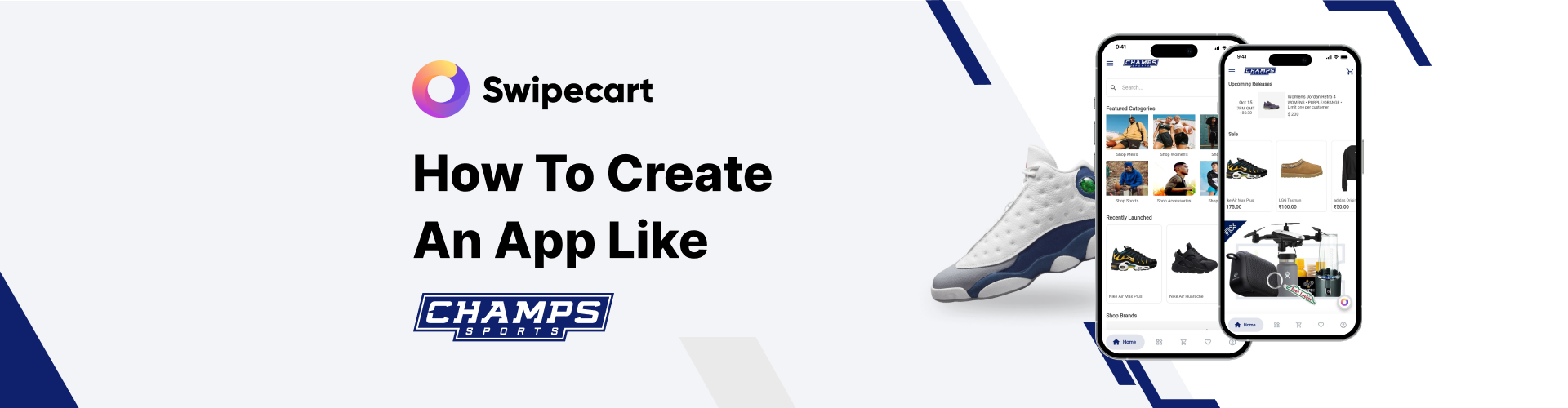
How to create an app like Champs Sports
Champs Sports, a subsidiary of Foot Locker, is a sports retail store selling apparel, athleisure, equipment, sneakers, and accessories. With its headquarters in Florida, U.S.A, this retail chain has more than 500 store locations across the U.S., Canada, Puerto Rico, and the Virgin Islands.
For those of you planning to sell sportswear and equipment online, the Champs Sports app can serve as a reference. Even you can create an app like Champs Sports. Don’t worry about the complexity of building it. The no-code app builder Swipecart will make things simple for you. You don’t have to write codes or spent a large amount of time, money, effort, or resources on it. With Swipecart, you can create your app in minutes. We’ll show how that’s possible.
In the meanwhile watch this beginner's video tutorial to know more about creating an app on Swipecart:
The drag-and-drop app builder Swipecart is, undoubtedly, your go-to tool to create apps. Enjoy marketing your store through your e-commerce app. Try Swipecart now.
Steps to create an app like Champs Sports:
-
Install Swipecart to start using it. It is available on the Shopify app store and WordPress plugin center. You'll be taken to the dashboard after signing up for Swipecart.
Creating a layout for the Champs Sports app on Swipecart
-
Click on "Layouts" in the left menu of your Swipecart dashboard.

-
Click on the “Create Layout” icon to create a new layout for the Champs Sports app.

-
Clicking on “Create Layout” will open a popup. Type the layout name "ChampsSports" and click on "Create".

-
Now, Swipecart allows you to choose between pre-made layout templates and a blank layout. Since we need to design an app like Champs Sports, we choose "Blank Layout". Now, click "Create Layout."

-
A blank layout with the name ChampsSports is formed. For more details about creating layouts on Swipecart, click here.
Theme Settings on Swipecart
-
You'll be taken to the app layout dashboard with the default tab as "Theme Settings" and the sub-tab as "App Bar Settings". Basically, the theme settings allow you to set the theme and customize it for your brand.

-
App bar Settings: Set your branding element on the app bar or the action bar because it stays on the top throughout all pages of your app. Here, we upload the Champs Sports logo to customize the app bar. For more details on app bar settings, click here.

-
We then go to Side Menu Settings, Bottom Bar Settings, Profile Page Settings, and Input Style Settings. Here, we select our choice from the style variants and save it to the app.
-
Theme Style Settings: In this section, we set the theme for the app. The changes made here are reflected throughout the app.

-
Here, change some of the styling parameters for the app's theme such as app background color and font style & color.
-
Click here to learn more about theme style settings on Swipecart.

-
Here's the draft app with theme customizations completed to match the Champs Sports app.

Designing the Champs Sports app home screen
-
Next, we move on to designing the app's home screen. Click on the "Home" tab. A blank home screen is displayed with only the app bar and bottom bar.
-
We add content to the home screen by dragging and dropping style variants of widgets. These are accessible in the drop-down box panel at the right section of your screen.
-
Click here for more information about widgets on Swipecart.

-
Search Bar: We start with the search bar. Select "Search" from the drop-down widget list. Drag and drop the search bar displayed below the box inside the home screen.
-
Hover over the search bar and click on the "Edit Style" option. In the popup that opens, customize the styling parameters for the search bar.
-
Click here for information on the search bar widget.

-
Have a look at the Champs Sports app's home screen with the search bar on it.

-
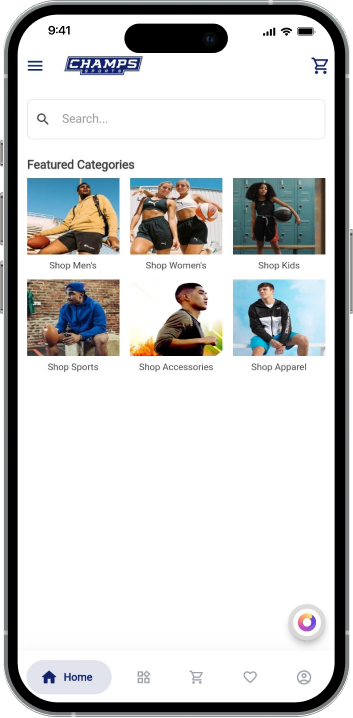
Collection Grid: We now start displaying the collection categories in a grid format on the app's home screen.
-
Select "Collection Grid" from the widget list. Place a square collection grid inside the home screen layout.
-
For more details on the collection grid, click here.

-
To add content to the collection grid, hover over the grid widget and click on "Add/Edit Content". In the opened popup, add all relevant categories from the collection list to the grid.
-
Click here for details about adding and editing content on widgets.
-
To set the styling for the collection grid, hover again over it and click on "Edit Style". In the popup that opens, set the styling parameters to suit the brand.
-
Click here for details on styling widgets.

-
Here's the app preview of the collection grid on the Champs Sports app.
-
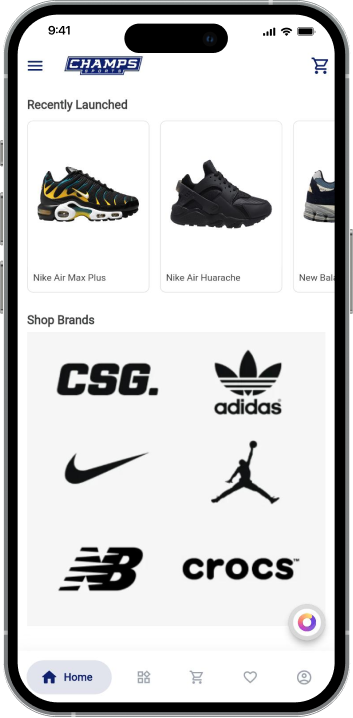
Product Slider: To display specific products on the home screen, select "Product Slider" from the widget list. Place one among the style variants inside the home screen.
-
Click here for information about product sliders on Swipecart.

-
Add products to the slider from the product list through the "Add/Edit Content" option. Set the styling elements for the slider through the "Edit Style" option.

-
Have a look at the product slider added to the Champs Sports app.

-
Single Banner: It is used to highlight attractive schemes like discounts, sales, new product launches, or flash deals on the app.
-
Select "Single Banner" from the widget list. From among the different style variants offered by Swipecart, select one and place it on the app's home screen.
-
Click here for detailed information on single banners.

-
To add an image to the single banner, click on "Add/Edit Content". In the popup that opens, add an image and link it to the relevant product, collection category, any other app page, or an external website link.
-
Set the styling elements for the banner through the "Edit Style" option.

-
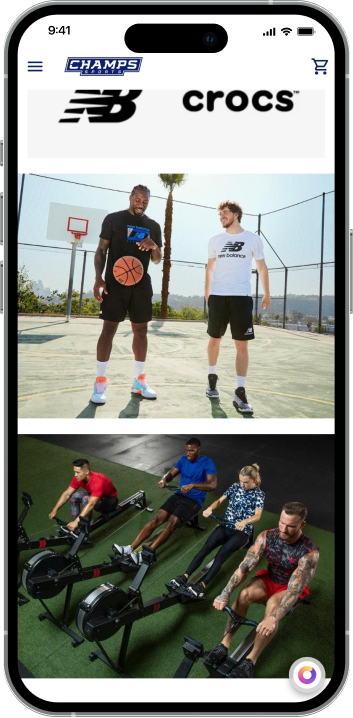
Have the look at the app with a single banner on it.
-
Add single banners to the app repeating the process as mentioned above. Design your app on Swipecart because it gives you the freedom to create apps on your own.
-
We are done designing the Champs Sports app on Swipecart. Other than the widgets mentioned here, you could try others such as the banner grid, banner slider, carousel banner, collection slider, product grid, product list, and timer.
-
Have a look at the final Champs Sports app designed on the no-code app builder Swipecart.
Now you know how easy it is to use Swipecart to create a feature-rich app for your online store. You don't need great coding skills to build amazing apps. All you need is a bit of creativity and Swipecart. Start building an app for your online store today.
Contact us if you have any queries regarding designing apps on Swipecart. We'll be glad to help.


